




WoW Forever ships with HD models, the modern interface, new lighting and volumetric fog, and many players who came back for Classic want the old look instead. Most of it can be restored: pick Classic on the first login screen, switch character models to Standard Definition, load the Classic Edit Mode layout and install the ClassicUI Forever addon for the old frames and windows. Only the new lighting has no way back.
Below you will find each of these steps in the order you meet them in the game, what the SD toggle does not change, the best Classic UI addons, and the settings that tone down the new fog and glow.
A Classic look in Forever is assembled from separate pieces, and only some of them sit in the base game. The table maps each piece to the place you change it:
| Part of the look | Where to change it | Built in |
|---|---|---|
| Starting preset | First login screen: Classic | Yes, first login only |
| Character models | Game Menu → Options → System → Graphics → Character Models: Standard Definition | Yes |
| Quest markers and objective areas | World map filter, top right: Quest Objectives off | Yes |
| One bag or separate bags | Options → Controls → Combine Bags off | Yes |
| Transmog | Transmogrifier in certain cities | Yes |
| Target behavior | Options → Controls → Sticky Targeting off | Yes |
| Turning keys | Options → Keybindings → Movement Keys: Turn Left and Turn Right on A and D | Yes |
| HUD positions | Game Menu → Edit Mode → Layout → Classic (Preset) | Yes, positions only |
| Old frame, bar and window art | ClassicUI Forever addon | Addon |
| Volumetric fog | No off switch; Graphics → Shadow Quality above Low tones down its glow | Partly |
| Bloom | Graphics → Bloom Intensity: Low | Yes |
| New lighting | No setting restores the old lighting | No |
Only the first row is time-sensitive. Pick Classic on the first screen, because that screen does not come back; everything else in the table can be changed at any point.
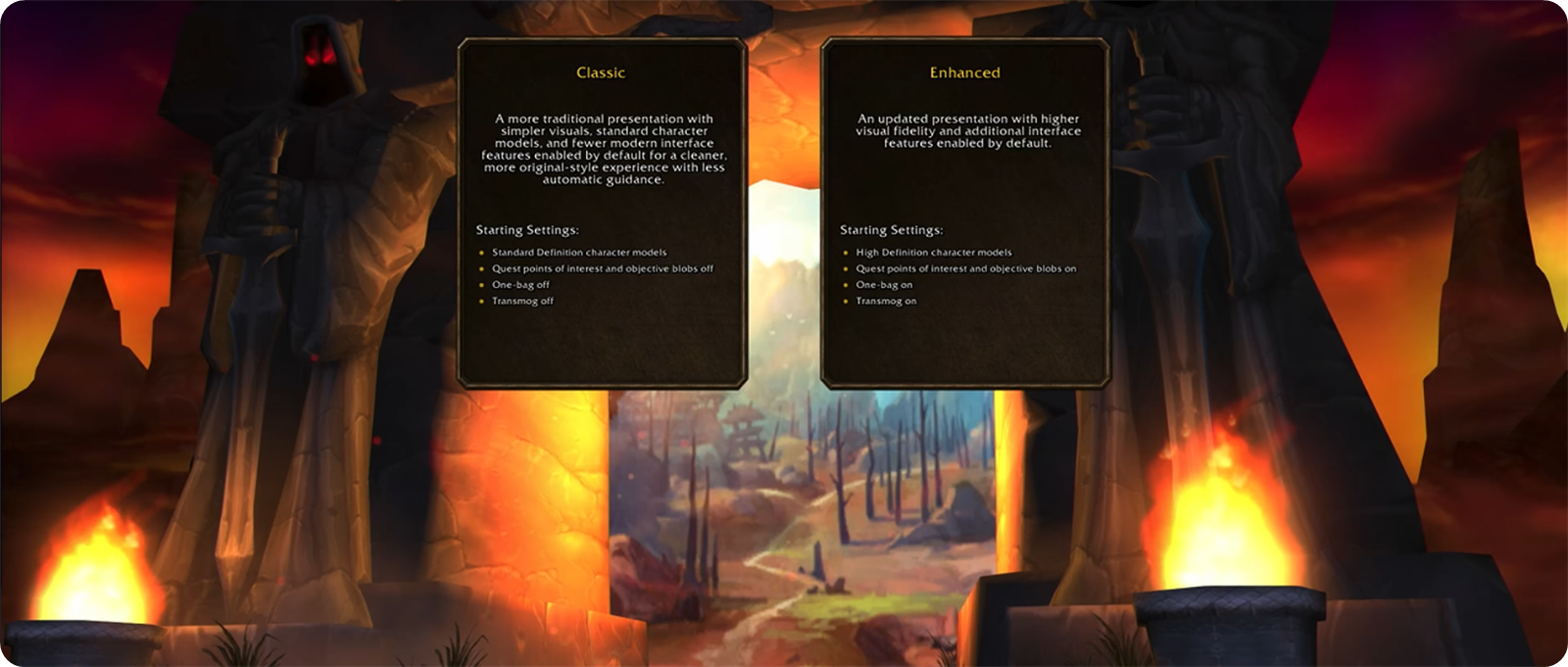
One choice comes first: Classic or Enhanced. The game describes Classic as a more traditional presentation with simpler visuals, standard character models and fewer modern interface features, built for a cleaner, more original-style experience with less automatic guidance. Enhanced is the updated presentation with higher visual fidelity and more interface features on by default.
| Starting setting | Classic | Enhanced |
|---|---|---|
| Character models | Standard Definition | High Definition |
| Quest points of interest and objective blobs | Off | On |
| One-bag | Off | On |
| Transmog | Off | On |
| Keyboard binds | Camera turning | Strafe movement |
| Screen UI layout | Classic | Centralized |
These are starting settings and nothing more: the selection screen itself says you can customize them later. Blizzard's developers confirmed that picking Classic switches off quest tracking and hides other players' transmog the moment you enter the world.
What does not come back is the selector itself.
Players who go with Enhanced and change their minds find no menu that reopens it. The move to Classic then happens one setting at a time.
Each of the six starting settings has its own home in the game:
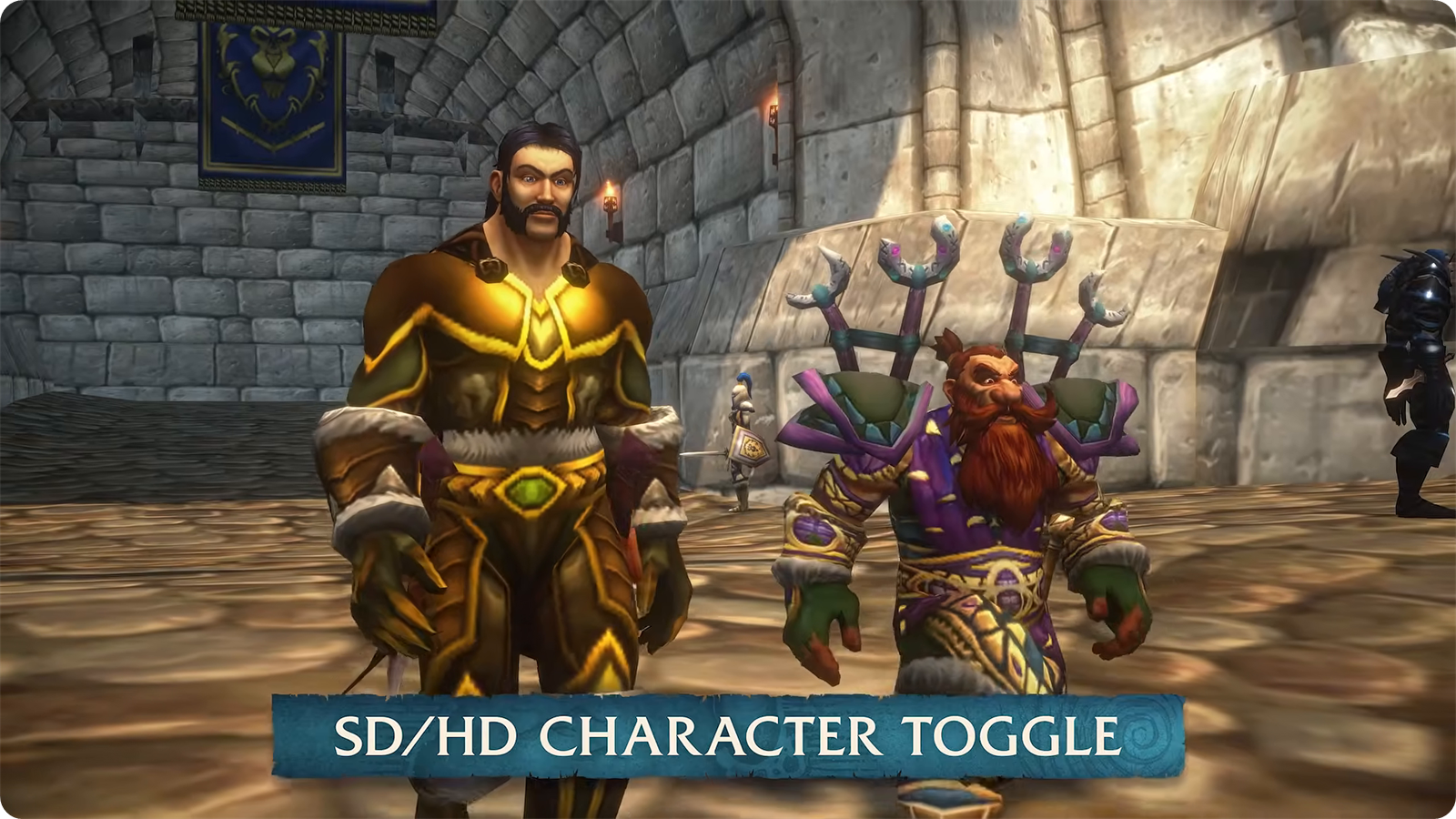
Character models have their own switch, and it works game-wide: your character, NPCs and other players all render in SD, or all of them in HD. The choice only changes your screen. Someone playing with HD models still sees your character in HD.
You can flip it in three places. In character creation, a High-Definition Models checkbox sits at the bottom of the customization options, bottom right just above Finish, so you can compare both versions of the same face before you commit. With SD on, the creation screen also switches to matching icons. The barbershop carries the same checkbox. In the world, open Game Menu → Options → System → Graphics → Character Models, pick Standard Definition and accept the UI reload. All three change one setting that applies across your account, so it follows every character you log in with.
SD in Forever is not the old Classic client pasted in. Players spotted early that SD characters stand on the modern skeleton, and Blizzard's developers confirmed it: SD and HD models share one skeleton. What the team reworked instead are the main animation sets on both, so running, walking, swimming, attacks, spellcasting and interacting all carry a Classic feel. At BlizzCon an HD dwarf ran on the restored Classic animation set, so the dwarf run is back to the old one.
The result is close to Classic without being the same models, and Blizzard asked for player feedback on exactly this point.
Both versions share one set of choices: face, hair and the rest carry over from SD to HD. HD adds extras on top - eye color and eyebrows on some races. Faces are the catch. A face tuned in SD can turn into a stranger in HD, and human characters draw the loudest complaints while most other races transition fine. If you plan to play in SD, build the character in SD, then tick the checkbox to see what players on HD models will see, and untick it before Finish, since it is the same account-wide switch.
The switch covers the classic races and their world, and a few things sit outside it:
There is no Classic UI toggle in WoW Forever.
Blizzard's own list of Forever's visual options names opt-in transmog, modern and Classic visual presets, HD and SD character models, restored Classic animations for HD models and gamepad support. An interface switch is not on it, and the game ships the retail interface features to everyone, from the unit frames and cast bars to the spellbook and character window.
Edit Mode is the closest built-in option, and a Classic pick on the first screen already starts you on its Classic layout. In Edit Mode → Layout, Modern (Preset) sets the player and target frames side by side at the bottom center, while Classic (Preset) moves them to the upper left and keeps the action bars along the bottom, the way the original HUD sat - the art itself stays modern, so frames and bars keep their current style.
Two control settings restore Classic behavior without any addon. Sticky Targeting in Options → Controls is on by default - turn it off and clicking empty ground drops your target the way it always did in Classic. Combine Bags off returns separate bags. Quest text has a checkbox of its own in Options → Interface: Instant Quest Text shows it all at once, and with the box unchecked it fades in instead.
Forever runs the modern addon API, the same approach retail uses, so interface addons for it are built on the same frames as retail ones. Install the file marked for WoW Forever. Several projects carry almost the same name, and search results mix Forever files with retail ones.
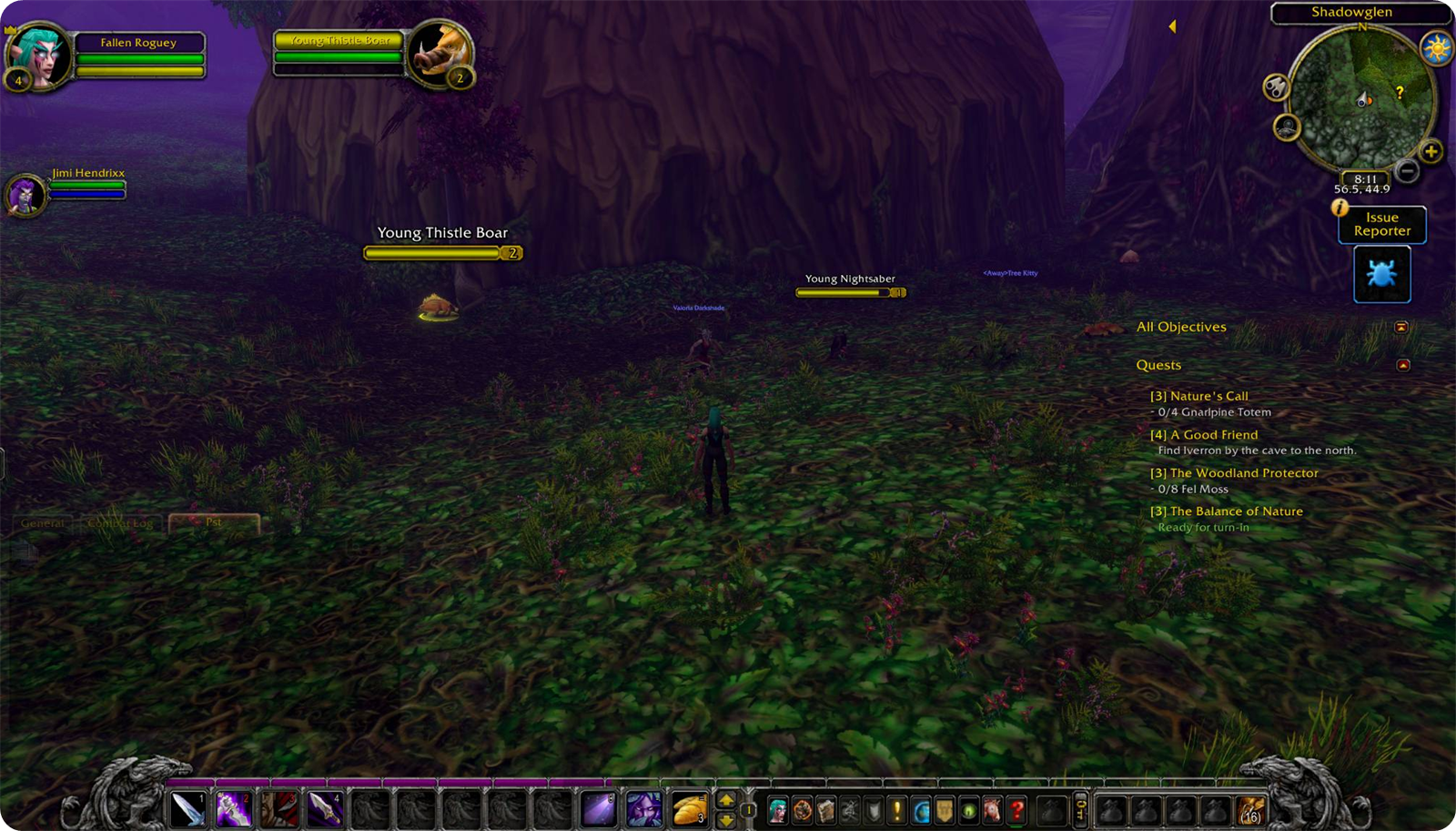
ClassicUI Forever by justawower puts the original Classic art on top of Forever's interface and works with the game's own Edit Mode instead of fighting it. Download the one made by justawower, because copies with near-identical names circulate on CurseForge. What it brings back:
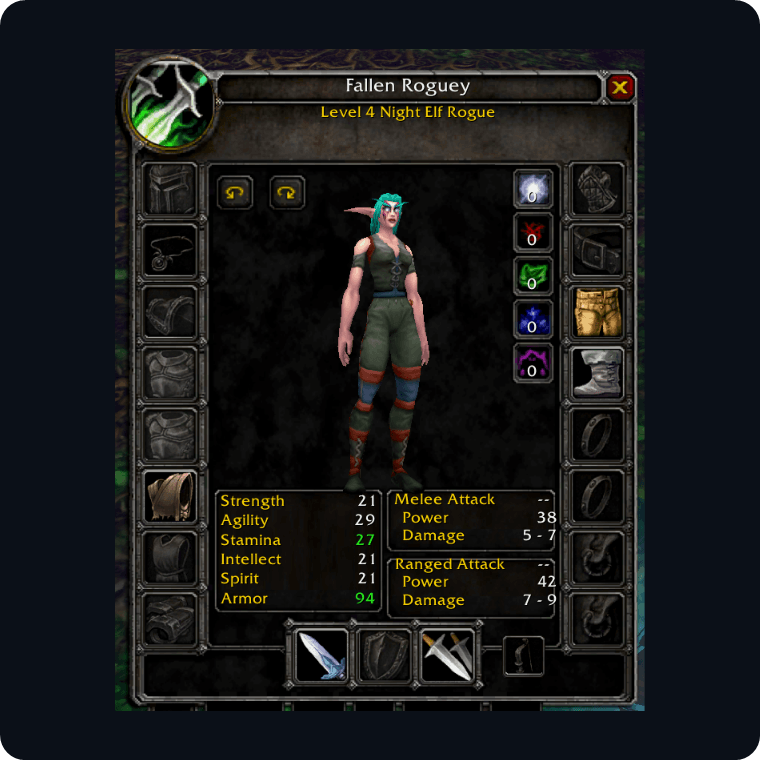
Character sheet in the 1.x frame
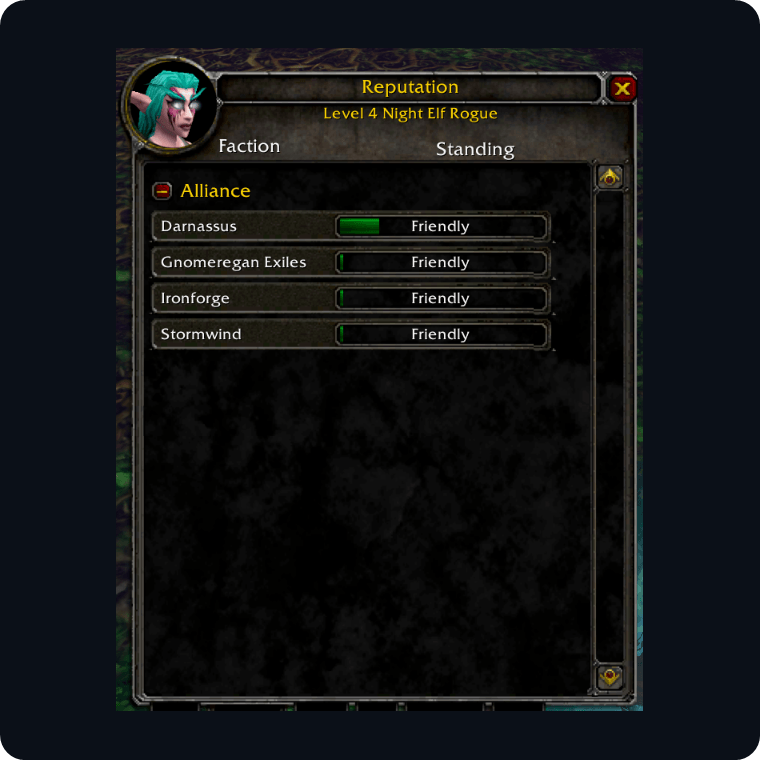
Reputation tab
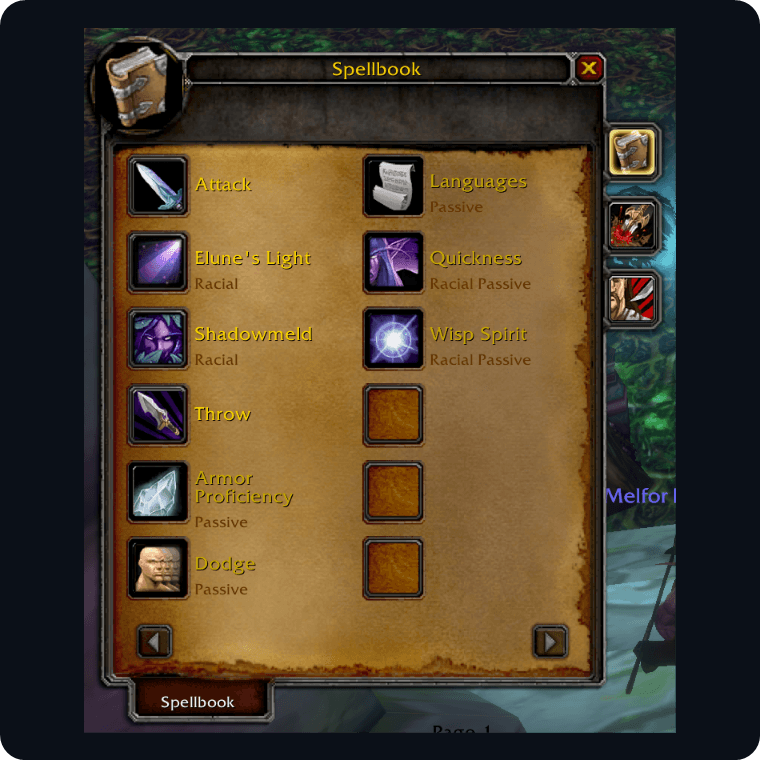
The 1.x spellbook
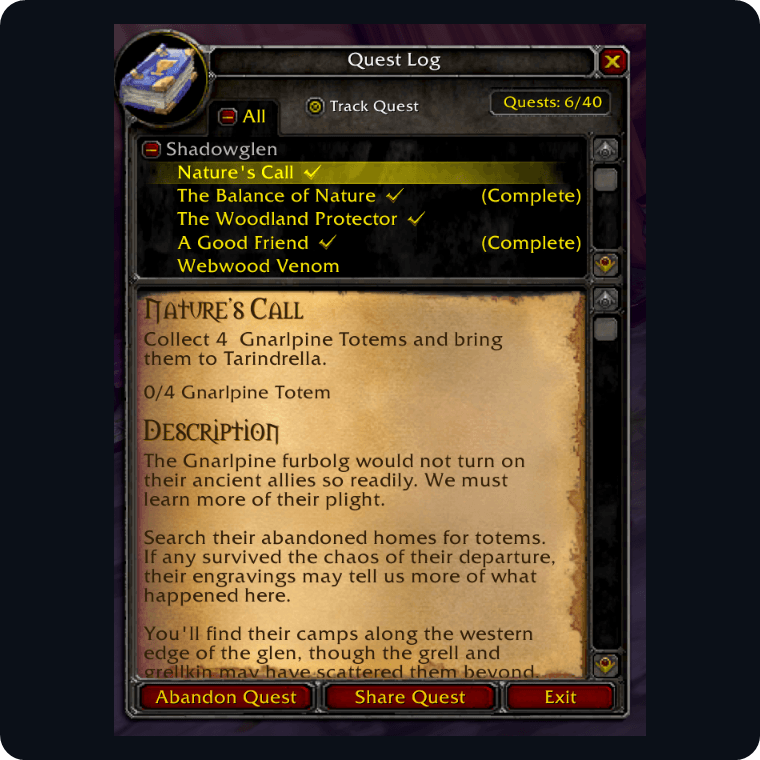
Parchment quest log
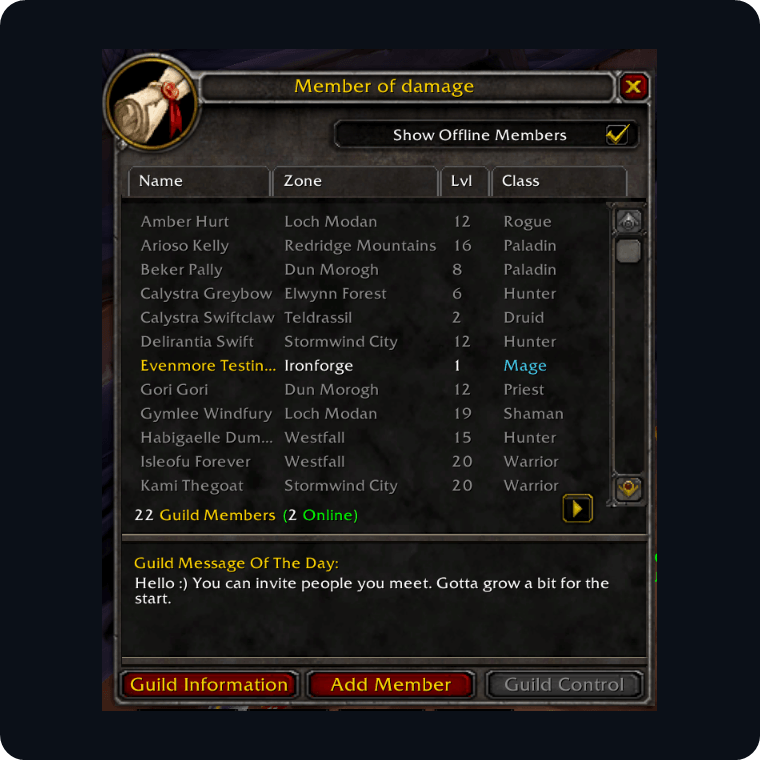
Guild roster tab
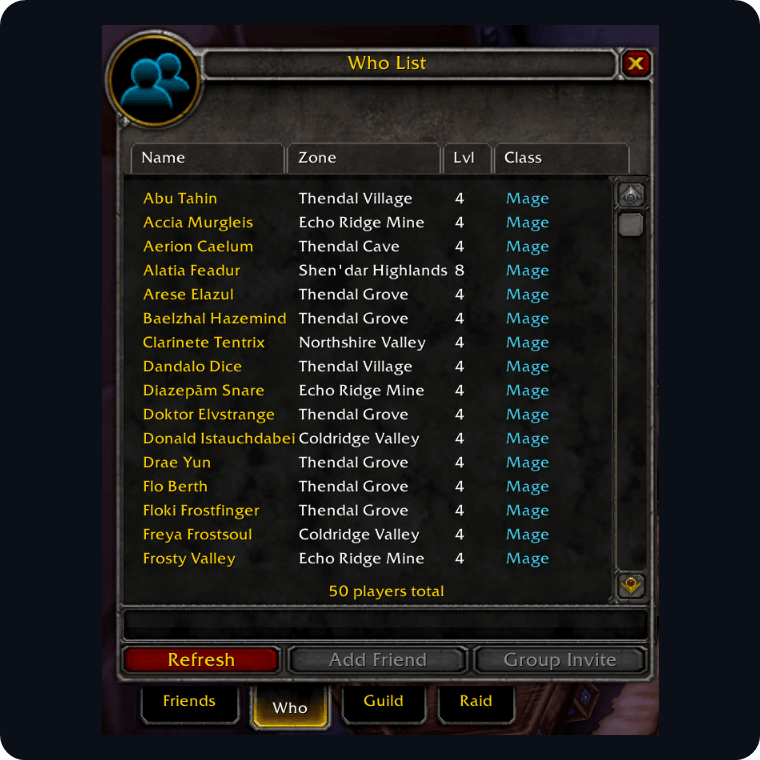
Who list tab
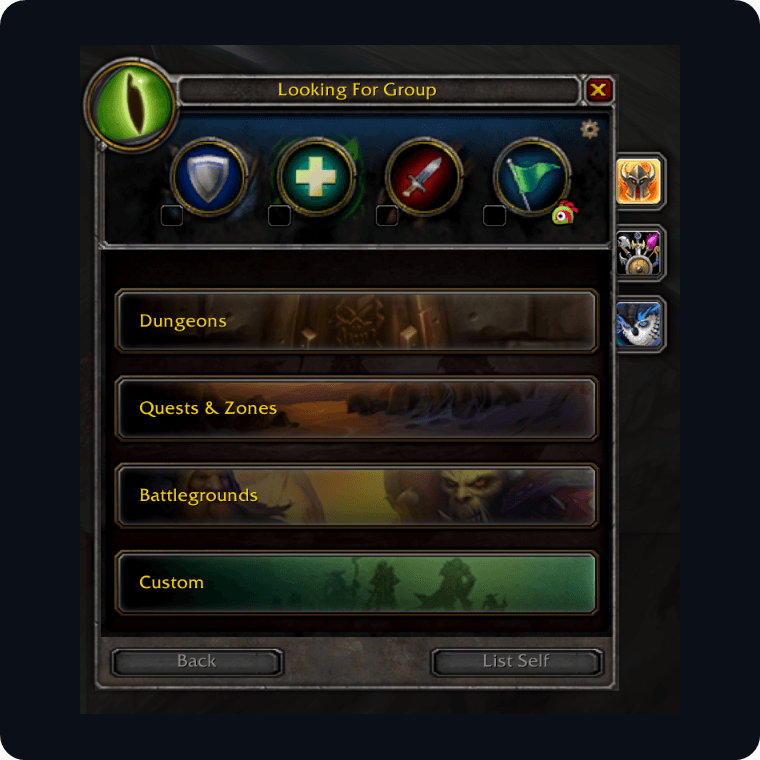
Group finder in the classic frame
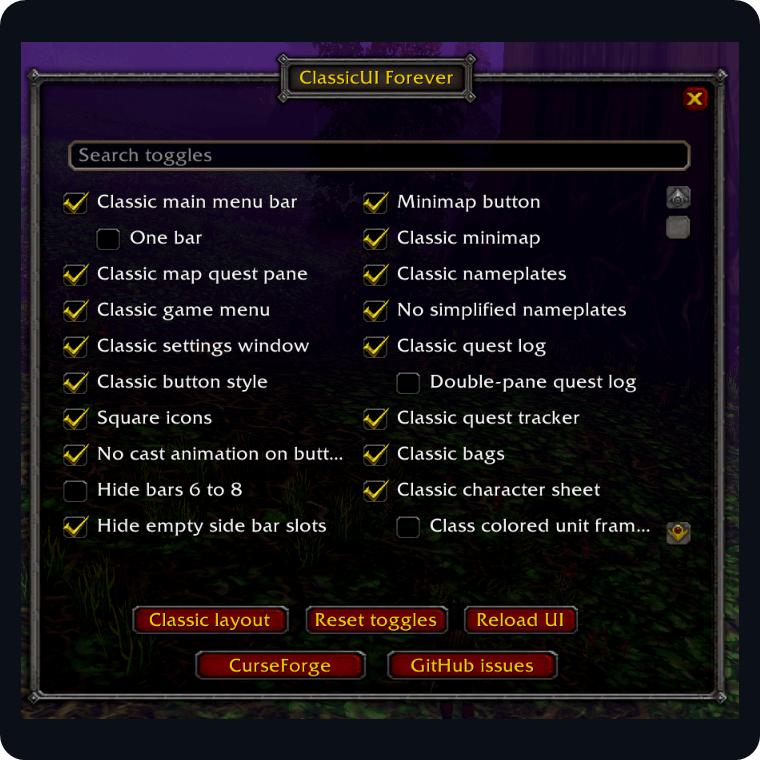
ClassicUI Forever options
Every piece is its own toggle. Flip them in the addon's options window or in the game's Settings; turn one off and the modern version comes back in place, so you can keep the new character sheet, say, while the rest of the UI goes Classic. Windows unlock from the lock in their title bar, drag anywhere and resize from a corner grip, and Dark and Bronze themes recolor the classic art. On first login the addon offers an optional classic Edit Mode layout that puts the bars where 1.x kept them, and your current layout and keybinds are left alone.
| Command | What it does |
|---|---|
| /fcui | Opens the options window |
| /fcui settings | Opens the same toggles in the game's Settings |
| /fcui help | Lists every toggle and command |
| /fcui |
Turns one toggle on, and off turns it off, for example /fcui classicBar off |
| /fcui layout | Creates and selects the classic Edit Mode layout |
| /fcui prompt | Shows the first-login question again |
| /fcui welcome | Shows the welcome note again |
| /fcui whatsnew | Shows what changed in recent versions |
| /fcui legacy | Opens the classic Legacy window |
| /fcui textures builtin | Reads the art from the game client; bundled switches to the copies shipped with the addon |
| /fcui status | Opens the status report for bug reports |
| /fcui reset | Puts every setting back to its default |
EllesmereUI, a full interface suite that already runs on Forever, lets one profile wear several styles, and Classic WoW UI is the vanilla one. It redraws the nameplates, unit frames, party-style raid frames, damage meters and the character panel in the old art while keeping the suite's own features, and switching keeps the layout and settings where they were. On the Forever client the picker adds a WoW Forever card as well; it dresses the suite in Forever's own bronze frames, gryphons and round badges, so pick Classic WoW UI for the vanilla art. Picking a style reloads the UI once; after that each module can be switched on its own. It suits players who already run a full interface suite.
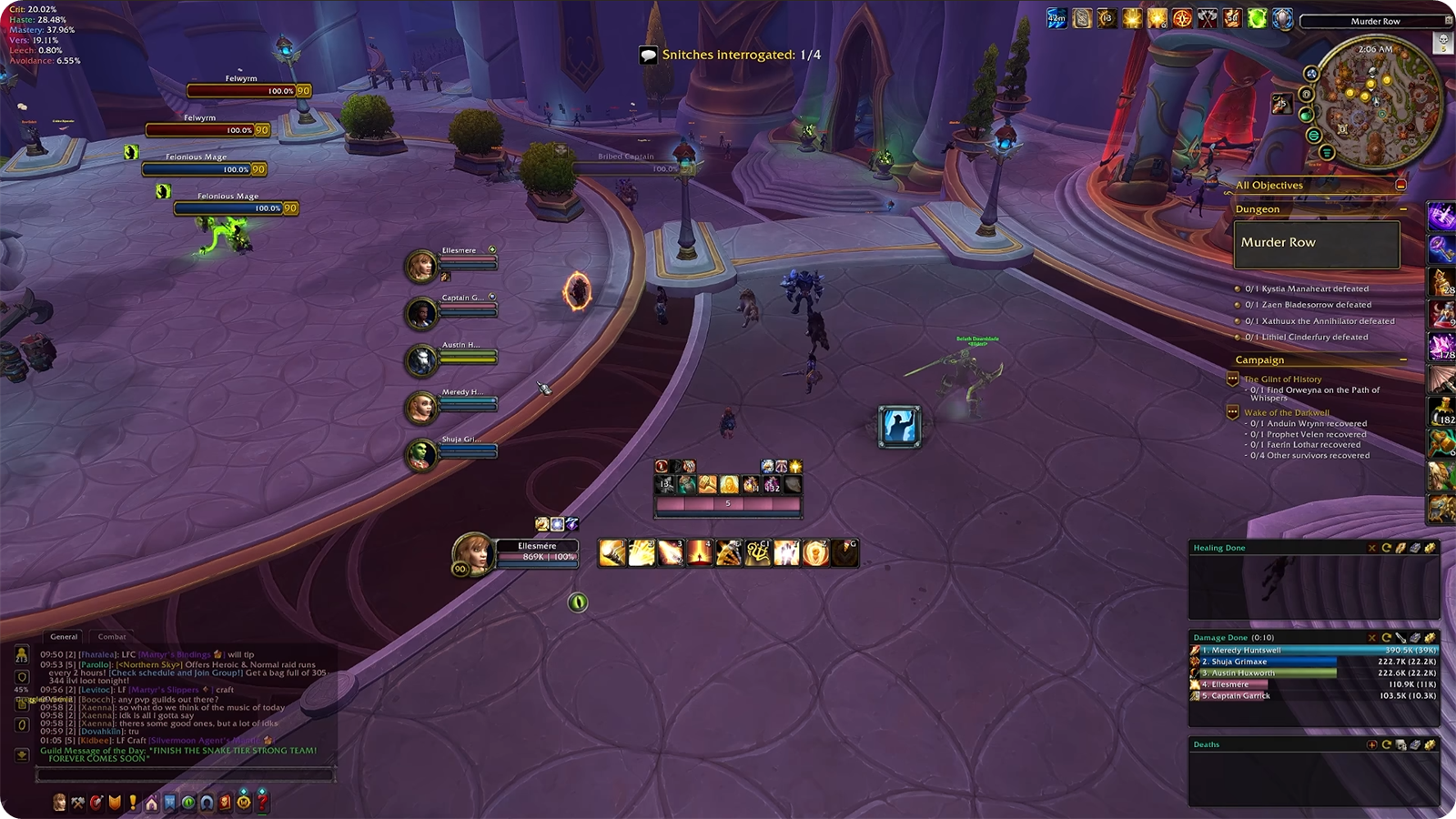
EllesmereUI Classic WoW UI style, shown on the retail client
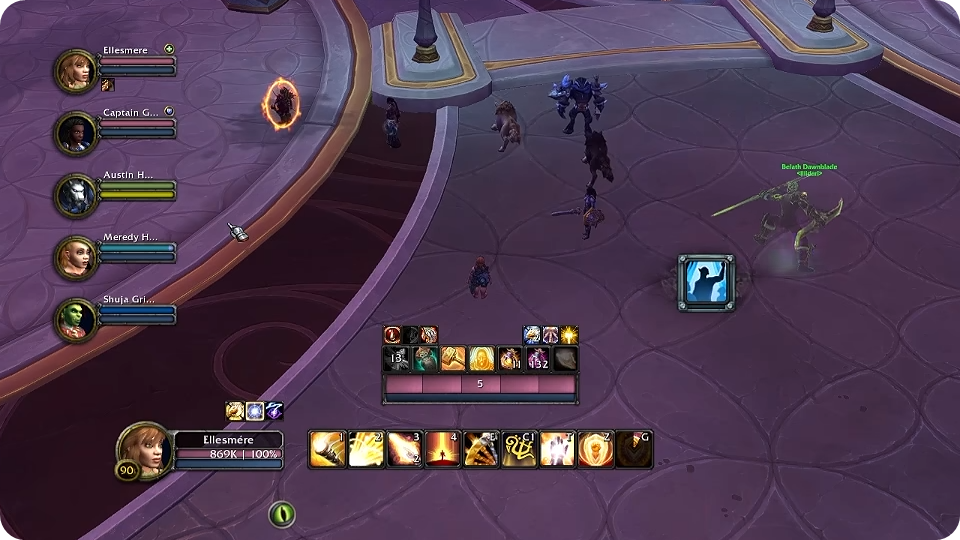
Classic WoW UI party frames and player frame
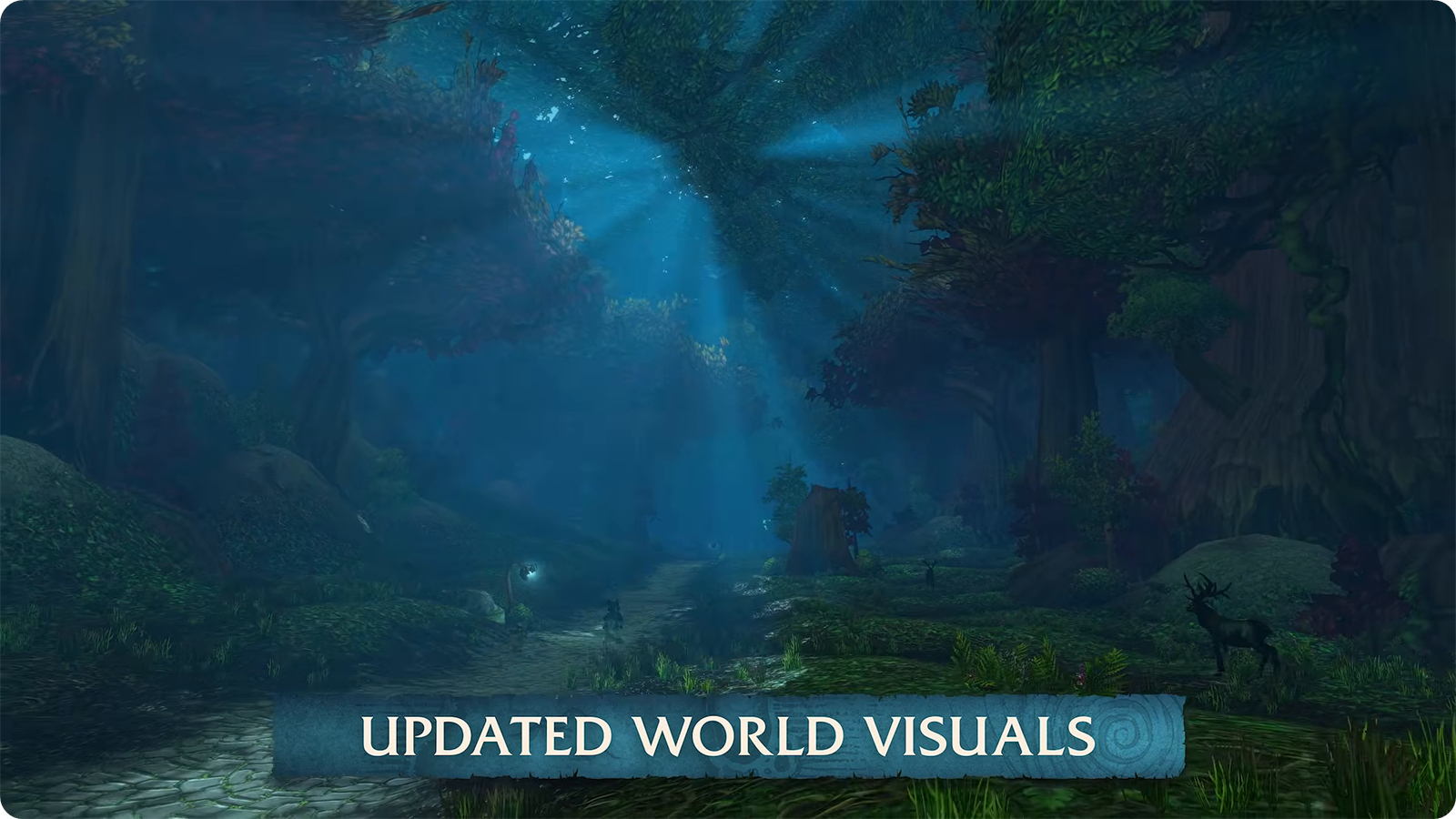
Lighting has no Classic switch. The starting preset covers models, quest markers, bags, transmog, keybinds and the screen layout, and SD models leave lighting, fog and water alone, so what the menus let you adjust is the bloom, the shadows and a handful of the new rendering options.
Forever also brings heavier weather, and the menu has no weather setting of its own.
There is no off switch. A beta update removed the setting that could disable fog, and /console volumeFog 0 no longer switches it off. Compute Effects in Graphics sets the fog's quality, but by its own description even Disabled keeps a low-resolution volume fog, so the menu thins the fog out without ever clearing it.
What does help is Shadow Quality. At Low the fog glows, Fair already tones it down, and Good is where the game starts drawing environment shadows, the ones that keep light from flooding the fog.
The fog is doing a job, too. Classic leaned on plain distance fog, Forever draws much further, and the new fog is what keeps Azeroth feeling big - without it the far side of a zone would sit in plain view.
For what every graphics setting costs in FPS, the best presets for your PC and the console commands for denser grass and a sharper image, see our WoW Forever graphics settings guide.
No. Edit Mode's Classic (Preset) moves the frames to their old positions but keeps the modern art, so the old frames, bars and windows come from addons such as ClassicUI Forever.
The first-login selector does not return, but every setting in it can be changed: character models in Graphics, quest markers on the world map, one-bag in Controls, transmog at a transmogrifier, the turning keys in Keybindings and the screen layout in Edit Mode.
Only if they use SD models themselves. The toggle changes how you see everyone, not how anyone sees you.
Yes, and so do HD models. Both share one skeleton, and the main animation sets were reworked to feel like Classic.
Yes. Other players' transmog is hidden from the moment you enter the world, and they stop seeing yours; a transmogrifier in certain cities turns the system back on, and appearances keep collecting while it is off.
Not yet. The Skyborne model looks the same with the toggle on or off, and SD Skyborne characters with SD druid forms are in development for early 2027.
No. A beta update removed the setting behind /console volumeFog 0, and no menu option switches the fog off, though Shadow Quality above Low tones down its glow.